Using Crystal Report in C#
In this article, I will provide an example of creating and using a Crystal Report in Visual Studio.
The provided example is a real working project for preparing tickets for printing on a standard laser printer.
Let's start with what we need, which is a data source, so first create a project where we will use our report and create a data source that we will export to an XML file, for a more simple and intuitive creation of a new report and its settings.
1. Create a standard C# project in Visual Studio, a form, and add 3 fields: prefix (on our ticket will be a barcode and number, in the barcode will be used the prefix), starting ticket number (from which number to start printing), ending number (up to which to end). Also add a button, on which click will occur the data source filling and the form call.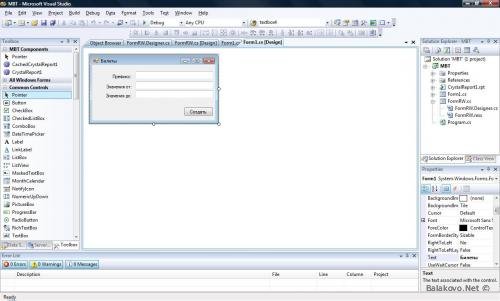
Here's what it looks like: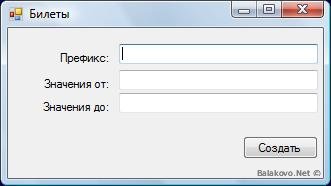
2. Now, on button click, describe the procedure for creating an XML file with data for the report.
private void button1_Click(object sender, EventArgs e)
        {
           XmlDocument doc = new XmlDocument();
            doc.AppendChild(doc.CreateXmlDeclaration("1.0","utf-8",null));

            XmlNode rootNode = doc.AppendChild(doc.CreateElement("ticket"));
            int j = int.Parse(textBox2.Text);
            int j1 = int.Parse(textBox3.Text);

            for (int i = j; i < j1+1; i++)
            {
                XmlNode bookNode = rootNode.AppendChild(doc.CreateElement("ticket"));

                XmlNode titleNode = bookNode.AppendChild(doc.CreateElement("bar"));
                long number = int.Parse(textBox1.Text);
                number = number * 10000;
                number = number+i;

                titleNode.InnerText = "*" + number.ToString() + "*";

                XmlNode titleNode1 = bookNode.AppendChild(doc.CreateElement("number"));
                string num = number.ToString();
                titleNode1.InnerText = num[2].ToString()+num[3].ToString()+num[4].ToString()+num[5].ToString();

            }
            doc.Save(@".\\dataset.xml");
        }
(The code creates an XML file with ticket numbers and barcodes, barcodes start and end with the symbol "*" — since we will use Code39 barcode types.)
3. After our XML file is saved, proceed to creating the report itself (report form).
Create a new project in Visual Studio — Reporting -> Crystal Reports Application.
There will appear a report project, to which add a data source, in the tree on the left:
Left button on «Database Fields» then Database Expert -> Database Files (select the XML file created by our project), then select the fields, in our case all.
For placing fields in the report, simply drag them onto the sheet.
Here's what I got: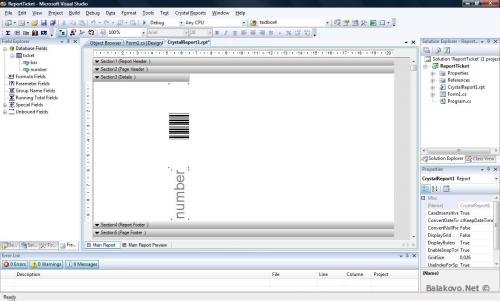
To make it like this, you need to change the report parameters in Report -> Section Expert. (there are set the main report parameters, from which depends what kind of view it will have).
After completion, save our report and copy CrystalReport1.rpt from the obtained project to the Debug folder of the previous project.
4. Now, return to our project and write the remaining code for calling the report.
First, add another form (in our case FormRW), and place the CrystalReportViewer element on it — here we will display the report.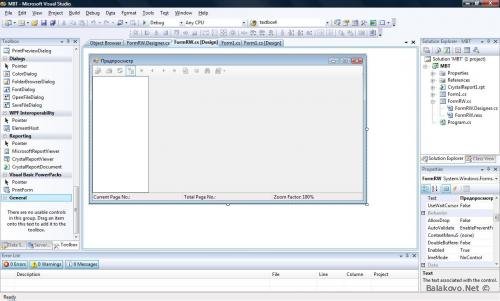
And add the procedure for button click:
private void button1_Click(object sender, EventArgs e)
        {
           XmlDocument doc = new XmlDocument();
            doc.AppendChild(doc.CreateXmlDeclaration("1.0","utf-8",null));

            XmlNode rootNode = doc.AppendChild(doc.CreateElement("ticket"));
            int j = int.Parse(textBox2.Text);
            int j1 = int.Parse(textBox3.Text);

            for (int i = j; i < j1+1; i++)
            {
                XmlNode bookNode = rootNode.AppendChild(doc.CreateElement("ticket"));

                XmlNode titleNode = bookNode.AppendChild(doc.CreateElement("bar"));
                long number = int.Parse(textBox1.Text);
                number = number * 10000;
                number = number+i;

                titleNode.InnerText = "*" + number.ToString() + "*";

                XmlNode titleNode1 = bookNode.AppendChild(doc.CreateElement("number"));
                string num = number.ToString();
                titleNode1.InnerText = num[2].ToString()+num[3].ToString()+num[4].ToString()+num[5].ToString();

            }
            doc.Save(@".\\dataset.xml");
            //Создаём отчёт
            ReportDocument myReport = new ReportDocument();
            //Задаём форму (которую создавали в пункте 3)
            myReport.Load(@".\\CrystalReport1.rpt");

            DataSet myDS = new DataSet();
            //Указываем источнику данных вновь сформированный XML файл.
            myDS.ReadXml(@".\\dataset.xml");
            //Указываем отчёту откуда брать данные.
            myReport.SetDataSource(myDS);
            //Создаём форму.
            FormRW frm = new FormRW();
            //Указываем отчёт для CrystalReportViewer
            frm.crystalReportViewer1.ReportSource = myReport;
            //Открываем форму.
            frm.Show();
        }
To work all used in the project components, you need to connect:
using System.Xml;
using System.Xml.Schema;
using CrystalDecisions.CrystalReports.Engine;
using System.IO;
P.S.
Here's what I got as a result (after some adjustments):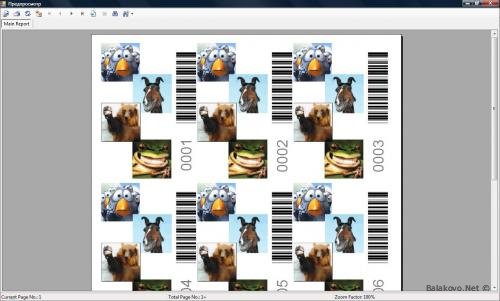
Download source: makebarticket.rar · 29 downloads
- makebarticket.rar 376.3 KB 29 downloads
Comments (0)
No comments yet.