ASP.NET MVC project on .NET Core in VS Code. Part 1 (Creating a project and Adding a Controller) C#
In this publication, I hope to start a cycle of stories about developing ASP.NET MVC applications on .NET Core without using Visual Studio. For application development, I will use VS Code (essentially a text editor with bells and whistles), and nothing else.
I will start by creating an empty project and sequentially adding to the project a Controller, View, and Model, with gradual inclusion of necessary libraries.
Since I am doing this for the first time, I may make mistakes or carry some "nonsense" :), so I apologize in advance for any "unclean" code or incorrect description of something. I can only guarantee that the provided examples are guaranteed to work.
So, let's start. The first publication will be devoted to creating an ASP.NET Core MVC project and adding a Controller.
First, if you haven't done so yet, install the .NET Core SDK and (if you don't want to write in a notebook) Visual Studio Code, all this good stuff can be taken here: .NET Core SDK & Visual Studio Code. Choose a platform, I'm on Windows.
Create a folder on the disk, and in this folder, create a new project from the command line using the command:
dotnet new
In the folder, two files will appear:
"Program.cs" — The project itself
using System;

namespace ConsoleApplication
{
    public class Program
    {
        public static void Main(string[] args)
        {
            Console.WriteLine("Hello World!");
        }
    }
}
"project.json" — Description and dependencies
{
  "version": "1.0.0-*",
  "buildOptions": {
    "debugType": "portable",
    "emitEntryPoint": true
  },
  "dependencies": {},
  "frameworks": {
    "netcoreapp1.0": {
      "dependencies": {
        "Microsoft.NETCore.App": {
          "type": "platform",
          "version": "1.0.0"
        }
      },
      "imports": "dnxcore50"
    }
  }
}
First, add Kerstel to "project.json" (this is a cross-platform web server).
For this, you need to add the line "Microsoft.AspNetCore.Server.Kestrel": "1.0.0"
After changes, the file "project.json" will look like this:
{
  "version": "1.0.0-*",
  "buildOptions": {
    "debugType": "portable",
    "emitEntryPoint": true
  },
  "dependencies": {},
  "frameworks": {
    "netcoreapp1.0": {
      "dependencies": {
        "Microsoft.NETCore.App": {
          "type": "platform",
          "version": "1.0.0"
        },
      "Microsoft.AspNetCore.Server.Kestrel":"1.0.0"
      },
      "imports": "dnxcore50"
    }
  }
}
Add to our project, in addition to the two already existing, another file "Startup.cs" with the following content:
using Microsoft.AspNetCore.Builder;
using Microsoft.AspNetCore.Hosting;
using Microsoft.AspNetCore.Http;

namespace MyTest
{
    public class Startup
    {
        public void Configure(IApplicationBuilder app, IHostingEnvironment env)
        {

            app.Run(
                context => {return context.Response.WriteAsync("Моя первая страничка на .NET Core!!!");}
            );

          }
    }
}
And change the file "Program.cs":
using Microsoft.AspNetCore.Hosting;

namespace MyTest
{
    public class Program
    {
        public static void Main(string[] args)
        {
             var host = new WebHostBuilder()
             .UseKestrel()
             .UseStartup<Startup>()
             .Build();

             host.Run();
        }
    }
}
At this stage, you can already run our project, for this, execute sequentially from the command line:
dotnet restore
dotnet run
Open a browser and look at what happened at the address: localhost:5000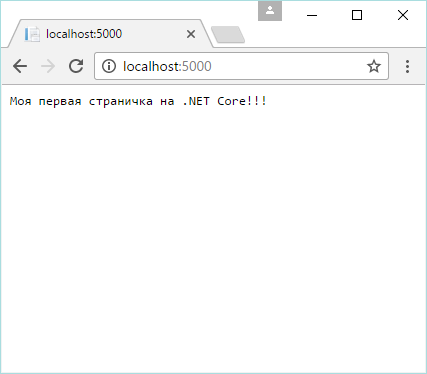
Now let's add a controller to our project.
For this, we will again change "project.json" by adding "Microsoft.AspNetCore.Mvc": "1.0.0":
{
  "version": "1.0.0-*",
  "buildOptions": {
    "debugType": "portable",
    "emitEntryPoint": true
  },
  "dependencies": {},
  "frameworks": {
    "netcoreapp1.0": {
      "dependencies": {
        "Microsoft.NETCore.App": {
          "type": "platform",
          "version": "1.0.0"
        },
      "Microsoft.AspNetCore.Server.Kestrel":"1.0.0",
      "Microsoft.AspNetCore.Mvc":"1.0.0"
      },
      "imports": "dnxcore50"
    }
  }
}
Add to our project a folder Controllers and create in it a file MyTestController.cs with the following content:
using Microsoft.AspNetCore.Mvc;

namespace MyTest.Controllers
{
    public class SayHelloController:Controller
    {
        public string Index()
        {
            return "Первое сообщение из Контроллера!!!";
        }

        public string Hello()
        {
            return "Привет мир!!!";
        }
    }
}
Change the content of the file "Startup.cs" as follows:
using Microsoft.AspNetCore.Builder;
using Microsoft.AspNetCore.Hosting;
using Microsoft.AspNetCore.Http;
using Microsoft.Extensions.DependencyInjection;

namespace MyTest
{
    public class Startup
    {
        public void ConfigureServices(IServiceCollection services)
        {
            services.AddMvc();
        }

        public void Configure(IApplicationBuilder app, IHostingEnvironment env)
        {
            app.UseMvc(routes =>
            {
                routes.MapRoute(
                    name: "default",
                    template: "{controller=Home}/{action=Index}/{Id?}"
                );
            });
        }
    }
}
I think in the last actions, explanations are unnecessary, the code is simple and clear, only necessary dependencies are included. In general, it does not differ from standard ASP.NET MVC.
Execute:
dotnet restore
dotnet run
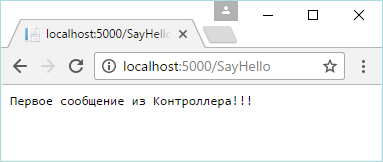
Open a browser and look at what happened at addresses: "localhost:5000/SayHello" and "localhost:5000/SayHello/Hello"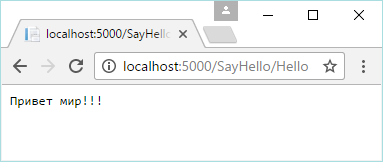
That's it for now.
The working source code of the example can be downloaded here:
sample001s.zip · 19 downloads
- sample001s.zip 2 KB 19 downloads
Comments (0)
No comments yet.