Dynamic Image Output in Crystal Report on C#
In this publication, I will tell you how to output the required number of images (for example, from a database) in a Crystal Report.
!!! To make the publication understandable, it is recommended to read the previous article Using Crystal Report in C#.
After trying many methods (mainly described on foreign sites - in Ru-net, this question is not studied very well), I found a working and efficient method for outputting images in a Crystal Report, which involves passing images to the report through a data source.
To pass images in this way, we simply create a DataTable, where one of the columns (or several) sets the data type to an array of bytes - "System.Byte[]". Then, we simply add images to the cells of this field, converting them to a Byte[] array.
Example of creating such a data source (DataSet):
//Создаём новый источник данных
DataSet myDS = new DataSet();
//Создаём новую таблицу
DataTable table = new DataTable("ImageTable");
//Создаём столбец
DataColumn column = new DataColumn("MyImage");

//Задаём тим данных массив byte для ячеек столбца
column.DataType = System.Type.GetType("System.Byte[]");
column.AllowDBNull = true;
column.Caption = "My Image";
//Добавляем созданный столбец в таблицу
table.Columns.Add(column);

//Создаём запись к таблице (строку)
DataRow row = table.NewRow();

//Получаем из файла изображение и преобразуем его в массив байт
FileStream fs = new FileStream("путь до файла изображения.bmp", FileMode.Open);
BinaryReader br = new BinaryReader(fs);
int length = (int)br.BaseStream.Length;
byte[] m_Bitmap = new byte[length];
m_Bitmap = br.ReadBytes(length);
br.Close();
fs.Close();

//добавляем в ячейку полученный m_Bitmap;
row["MyImage"] = m_Bitmap;

//Добавляем запись в таблицу.
table.Rows.Add(row);

myDS.Tables.Add(table);

//Записываем источник данных в XML
myDS.WriteXml(@".\\dataset.xml",XmlWriteMode.WriteSchema);
!!! Note the XmlWriteMode.WriteSchema - without this parameter, the editor will not understand what is in the image fields, because the data schema will not be saved!
After that, we can create a report form and add the obtained data source in the form of an XML file: Left button on "Database Fields" then Database Expert -> Database Files (select the created XML file by our project).
Here's what it will look like (when dragging a field onto the form, the images from the table will be displayed, in my case, one image, you can pass sets and link them to data):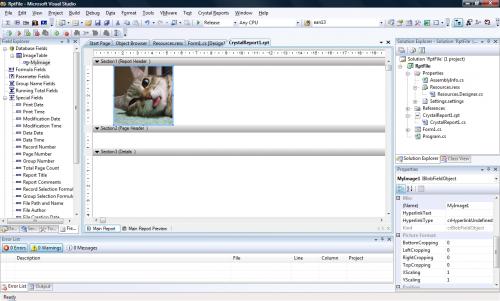
Created report form can be used and passed to it modified data source in this way:
ReportDocument myReport = new ReportDocument();
//Загружаем форму отчёта
myReport.Load(@".\\CrystalReport1.rpt");

DataSet myDS = new DataSet();

//Указываем источнику данных вновь сформированный XML файл.
myDS.ReadXml(@".\\dataset.xml");
//Указываем отчёту откуда брать данные.
myReport.SetDataSource(myDS);
//Создаём форму на которой лежит crystalReportViewer!
Form2 frm = new Form2();
//Указываем отчёт для CrystalReportViewer
frm.crystalReportViewer1.ReportSource = myReport;
//Открываем форму.
frm.Show();
!!! In the future, the data source does not need to be saved to disk, we saved it to disk only to create a report form with a structure of data that will fully match what we will pass to the report from the application.
Here's the result of the example (I changed only one image in the header, but this method can pass and sets of images linked to data, as I mentioned earlier):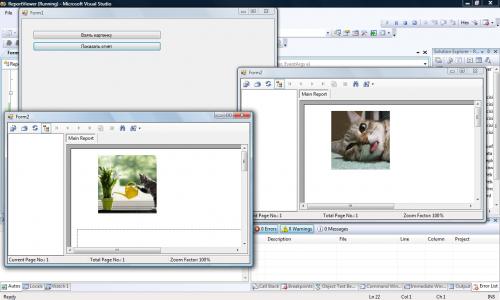
Download the original code example here:
reportimage.rar · 24 downloads
That's it. Questions and good comments are welcome.
- reportimage.rar 736.1 KB 24 downloads
Comments (0)
No comments yet.